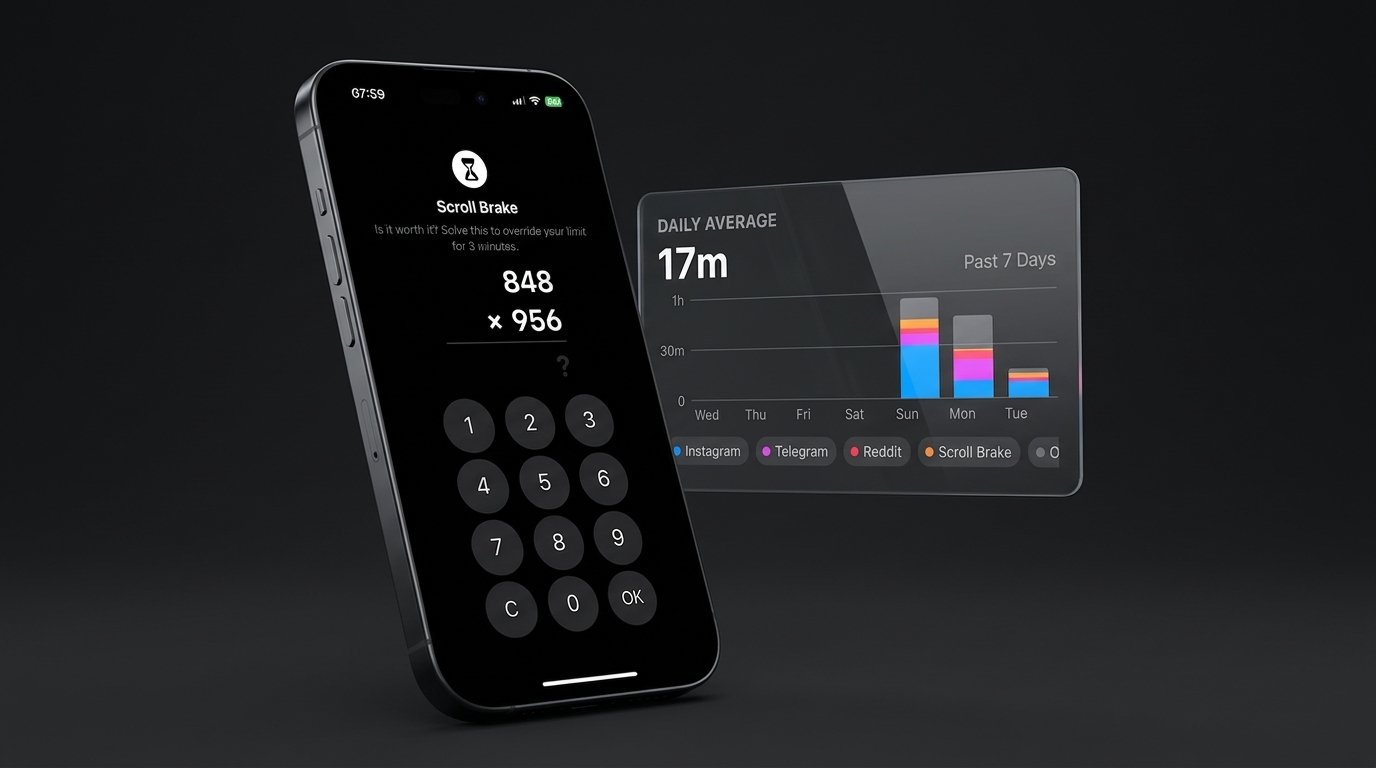
The story of how fighting dopamine loops led to building Scroll Brake, why popular competitors demand suspicious permissions, and how to conquer hidden traps in Apple's Screen Time APIs.
The 45-Minute Trap
I am obsessive about personal productivity. Over the years, I've developed my own system for managing time and daily energy that keeps my schedule structured and gets hard engineering projects shipped.
Yet there are moments when you just pick up your phone on autopilot and start doomscrolling Reels. One short video, a second, a third — the algorithm serves up an endless stream of engaging clips. You thought you were taking a two-minute breather, and suddenly 40 minutes or a full hour has evaporated. Social media algorithms are designed by top engineers to capture human attention at any cost. Each swipe feels slightly more rewarding than the last, trapping your brain in an infinite dopamine loop.
I had zero intention of writing my own app. As a software engineer and founder, my time is scarce, and I prefer using proven off-the-shelf tools. So I went straight to the App Store.
What's Broken with Modern App Blockers
I tested the category leaders — Opal, OneSec, ScreenZen, Refocus, alongside Apple's built-in Screen Time. Almost immediately, I ran into architectural and design patterns that left me bewildered:
The Notification and Privacy Paradox
The very first thing almost all these apps do is ask for push notification and analytics permissions. Why would a tool designed to keep me off my phone need to wake up my display with notifications? As it turned out later while building the app, this wasn't greed—it was an old system constraint in iOS that I'll break down below in the technical section.
Aggressive Paywall Walls
Before you even see the main interface or verify whether the tool solves your problem, you get hit with an aggressive subscription screen. It comes wrapped in a "free trial" clearly designed around the hope that users forget to cancel. As an entrepreneur, I understand the conversion math; as a user, I dislike dark patterns.
The Ineffectiveness of Apple's Default Screen Time
Apple's native Screen Time fails on human psychology. When the standard system overlay pops up, your thumb reflexively taps "Ignore Limit for 15 minutes". There is zero cognitive friction — the action happens entirely on muscle memory.
I had no desire to audit dozens of clones with identical paywalls. I realized building a lightweight, native tool for myself would be both faster and more honest.
Scroll Brake Principles: 4MB, No Trackers, No Subscriptions
At NovaSynapse, we follow the principle “Everything you need. Nothing you don’t.” Software should solve the problem, conserve battery, and respect user boundaries.
That's how Scroll Brake was born:
- ~4 MB install size: No bloated cross-platform runtimes, no web views, zero third-party tracking SDKs.
- 100% Privacy-First: No accounts, no database, no remote servers. Everything executes locally on-device using native iOS APIs.
- Cognitive friction over brute-force bans: To extend time in social apps, you must engage your prefrontal cortex — by solving a quick math puzzle. That single second of friction shatters autopilot.
- Anti-dopamine UX over gamification: After solving the puzzle correctly, I deliberately don't show confetti, fireworks, or congratulatory messages. Feeding the brain cheap dopamine for unlocking social media is absurd. The screen is intentionally kept as boring and quiet as possible: the timer is unlocked, and returning relies on the standard iOS back breadcrumb in the top-left corner (by design, iOS privacy protects which specific app triggered the shield, so the host app cannot auto-redirect you).
- Monetization: Up to 3 rules are completely free (I only use one myself: the "Social Networks" category capped at 5 minutes a day). For anyone needing more rules, I added a one-time Lifetime purchase instead of forced subscriptions.
The 4-Day Build Story: AI & Xcode Tools
I built the app with AI using Antigravity and Gemini models (3.1 Pro and Flash).
I've tinkered with mobile development before—building with Flutter and exploring native iOS—but that was before AI coding assistants became widespread. With AI, assembling a focused, lightweight app moved remarkably fast. You still can't just blindly accept generated code: Apple's system extensions are notoriously brittle, so I reviewed every line myself to prevent crashes and memory leaks. But overall, the build went smoothly, taking just 3–4 working days including manual testing on physical devices and older iOS versions:
- Icon in 15 minutes: Instead of manually exporting dozens of PNG layers, I used Xcode's Icon Composer developer tool. Vector layers automatically adapt to light, dark, and tinted iOS themes.
- App Store Review in < 24 hours: Because the app has zero tracking SDKs and requests no private user data, Apple approved the build the very next day.
Engineering Deep-Dive: Hidden Traps in Apple's Screen Time API
Now for the technical meat — working with the trio of ManagedSettings, DeviceActivity, and FamilyControls. If you build an app using Apple's Screen Time API, you will inevitably hit three architectural walls. Here is how I solved them:
Why Competitors Demand Push Notifications (iOS < 26.5 vs iOS 26.5+)
Users frequently complain about app blockers spamming notifications, but developers were long trapped by Apple's extension sandbox.
- The Legacy Constraint:
When an app is blocked, the system displays the protective overlay — ShieldActionExtension. The user taps an action button like "Extend". But this extension runs in a restricted sandbox where calling UIApplication.shared.open is strictly forbidden at both the compiler and system level. The ShieldActionResponse enum historically only supported .close, .defer, and .none. It was impossible to open the host app directly to present a code or puzzle!
- The Industry Hack:
The only workaround was firing a local push notification (UNUserNotificationCenter). The user had to pull down Notification Center or tap the banner to open the app. That is precisely why almost every competing blocker requests notification permissions.
- My Native Fix in iOS 26.5+:
Apple finally added the native response case ShieldActionResponse.openParentalControlsApp. When returned, the system immediately launches the main host app directly to the math puzzle view (MathPuzzleView):
  // ShieldActionExtension.swift
  defaults?.set(true, forKey: "launchedFromShieldAction")
  completionHandler(.openParentalControlsApp)
By targeting iOS 26.5+ as our deployment baseline (IPHONEOSDEPLOYMENTTARGET = 26.5), I eliminated push notification hacks entirely.
The Sandbox Ban on Direct Usage Analytics
I frequently get asked: "Why doesn't the app show minute-by-minute app charts in custom analytics?"
The answer: Apple architecturally isolates Screen Time data from the host app.
- Access to the
DeviceActivityResultsarray is granted exclusively to DeviceActivityReportExtension, which runs in an isolated system process. - The host app embeds only a visual container view, DeviceActivityReport. It renders out-of-process and projects the rendered view into your app's UI.
- Data never leaves the extension sandbox — host apps cannot write this data to SQLite, serialize it into arrays, or transmit it over the network.
Apple's documentation is explicit:
"To protect user privacy, the DeviceActivityReport extension runs in a sandbox, and its data doesn’t leave the extension. Instead, the extension creates and returns views that your app displays."
- Impact on Monitoring:
Tracking limits through DeviceActivityCenter works strictly on a threshold subscription model (DeviceActivityEvent.threshold). The system notifies DeviceActivityMonitorExtension only when the threshold is reached (eventDidReachThreshold), without streaming any intermediate usage telemetry.
- Why You Return via the Top-Left Breadcrumb:
In iOS, host apps have zero access to the bundleIdentifier that triggered the shield. As a result, an app cannot programmatically jump the user back into Instagram or TikTok. You simply tap the system back breadcrumb in the top-left corner of the status bar.
Overcoming Hidden Screen Time API Bugs
During stress testing, I encountered subtle iOS platform bugs that can break any blocker:
Event Caching Bug in DeviceActivityCenter
- The Bug: When updating the threshold for an existing
DeviceActivityName(during an extension), iOS would fail to trigger on the new threshold. - The Fix: Generate a unique activity name containing a session token
DeviceActivityName("limitpreceded by an explicit") stopMonitoring()call. - Apple Documentation: DeviceActivityCenter.startMonitoring.
deviceActivityCenter.stopMonitoring([previousActivityName])
let newActivity = DeviceActivityName("limit_\(UUID().uuidString)_\(sessionToken)")
try deviceActivityCenter.startMonitoring(newActivity, during: schedule, events: events)
The Next-Day Reset Glitch (Dual-Event Schedule Pattern)
- The Bug: If a DeviceActivitySchedule was configured with
repeats: trueand a user extended their time by 1 minute, the system would apply that same 1-minute threshold the following morning instead of resetting to the full daily limit. - The Fix: Register two distinct events in a single schedule:
mainEvent: the standard full daily limit for tomorrow.extEvent: a temporary event with the current date embedded in its identifier, expiring at 23:59 tonight.
OOM Crashes (Code 11) in DeviceActivityReport
- The Bug: Placing reactive timers (e.g. ticking second counters in SwiftUI) anywhere near a
DeviceActivityReporthierarchy triggered continuous XPC re-evaluations of 7-day usage logs. This caused rapid memory leaks and an instant process termination by iOS with an Out-Of-Memory (OOM) code 11 error. - The Fix: Completely eliminate reactive timers in UI views displaying reports, lock report filter parameters without constant mutations, and refresh data strictly on lifecycle events (
onAppear,willEnterForeground).
How I Configured It for Myself
Since launch, Scroll Brake has become my primary defense against fragmented attention.
My personal configuration:
- 1 Rule: "Social Networks" category blocked.
- Base Limit: 5 minutes per day.
- Extension: 5 minutes granted per solved math puzzle.
- Hard Stop: Maximum 5 extensions per day.
I physically cannot spend more than 25 minutes a day inside social apps. More importantly, my brain knows: watching a shared video requires mental friction. That tiny barrier is enough, 8 times out of 10, to set the phone face-down and get back to real work.