01
Together at your desk
Move between Macs with one keyboard and mouse. Each Mac keeps its own screen.
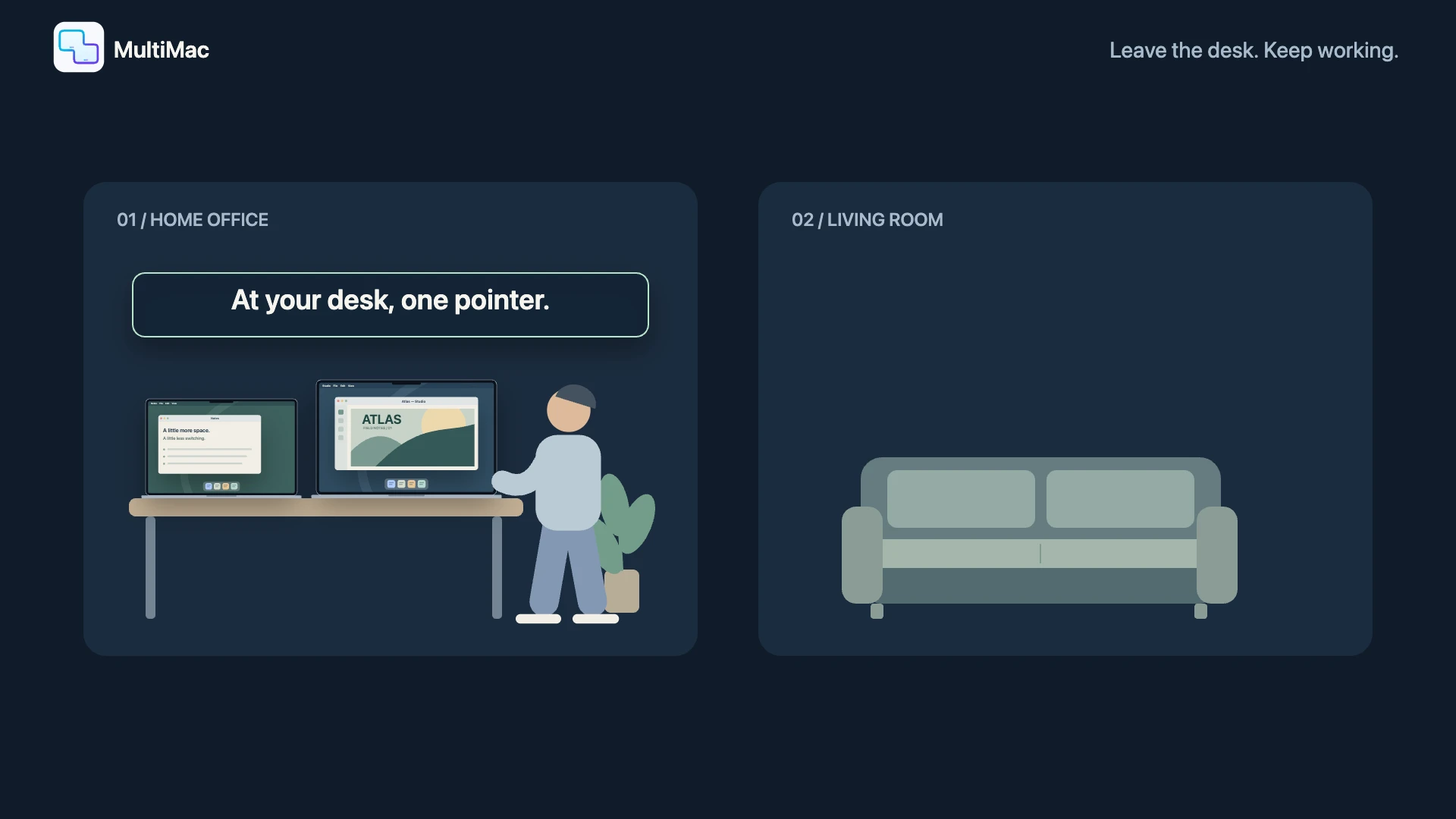

Keyboard and mouse sharing for Mac
Stop reaching for another keyboard. Move your pointer to the next Mac and keep going. Your clipboard, screens and apps can come with you.
30-day Premium trial · No card to get started
75-second illustrated walkthrough · English · Not a live recording
Choose When away. MultiMac estimates proximity with Bluetooth and brings the remote screen to your laptop during handoff. Return nearby and go back to ordinary pointer control.
Move between Macs with one keyboard and mouse. Each Mac keeps its own screen.
Unplug and move to another room. Bluetooth checks for a change in proximity.
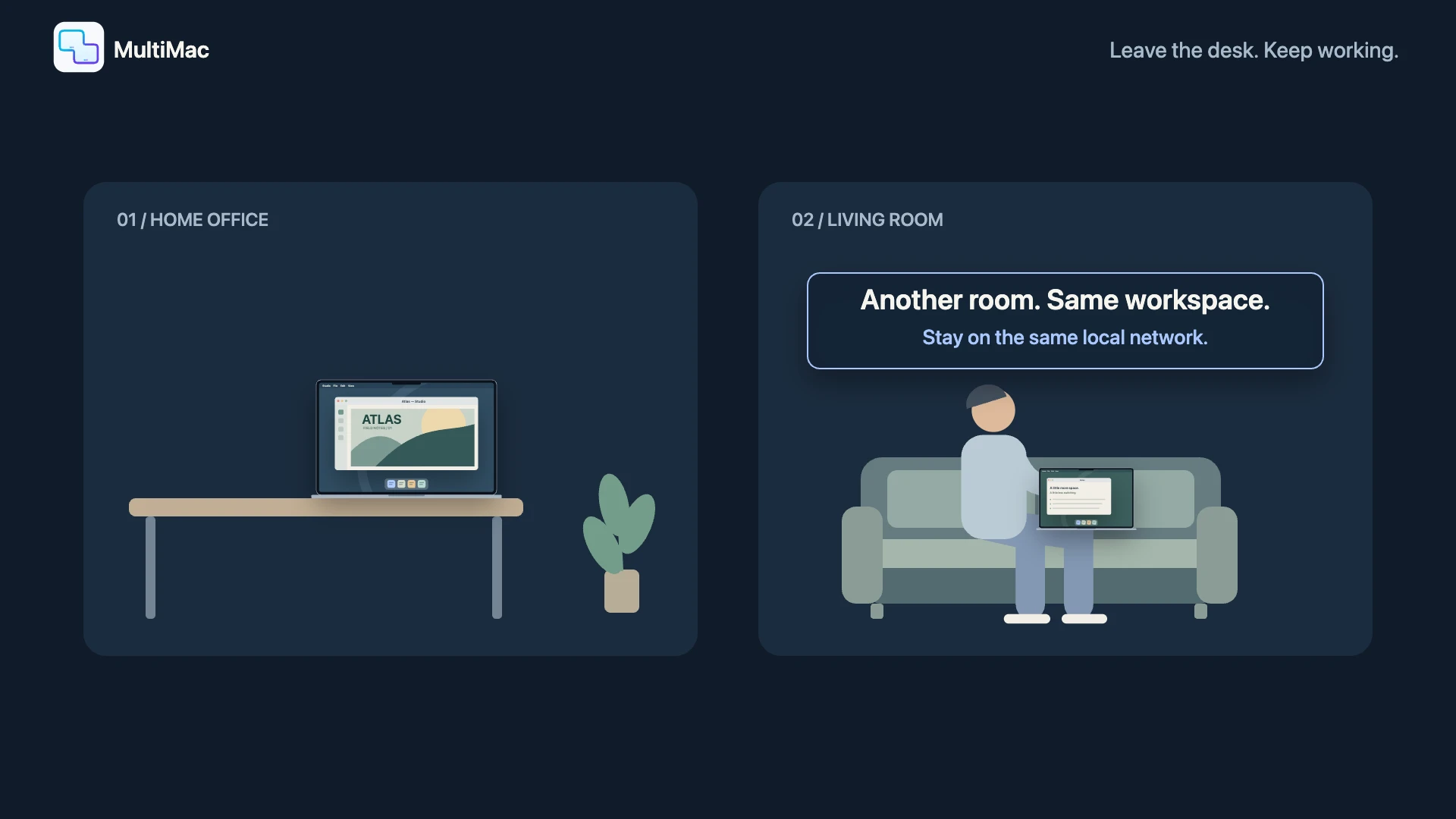
Once Away is detected, crossing to that Mac opens its screen on your laptop.
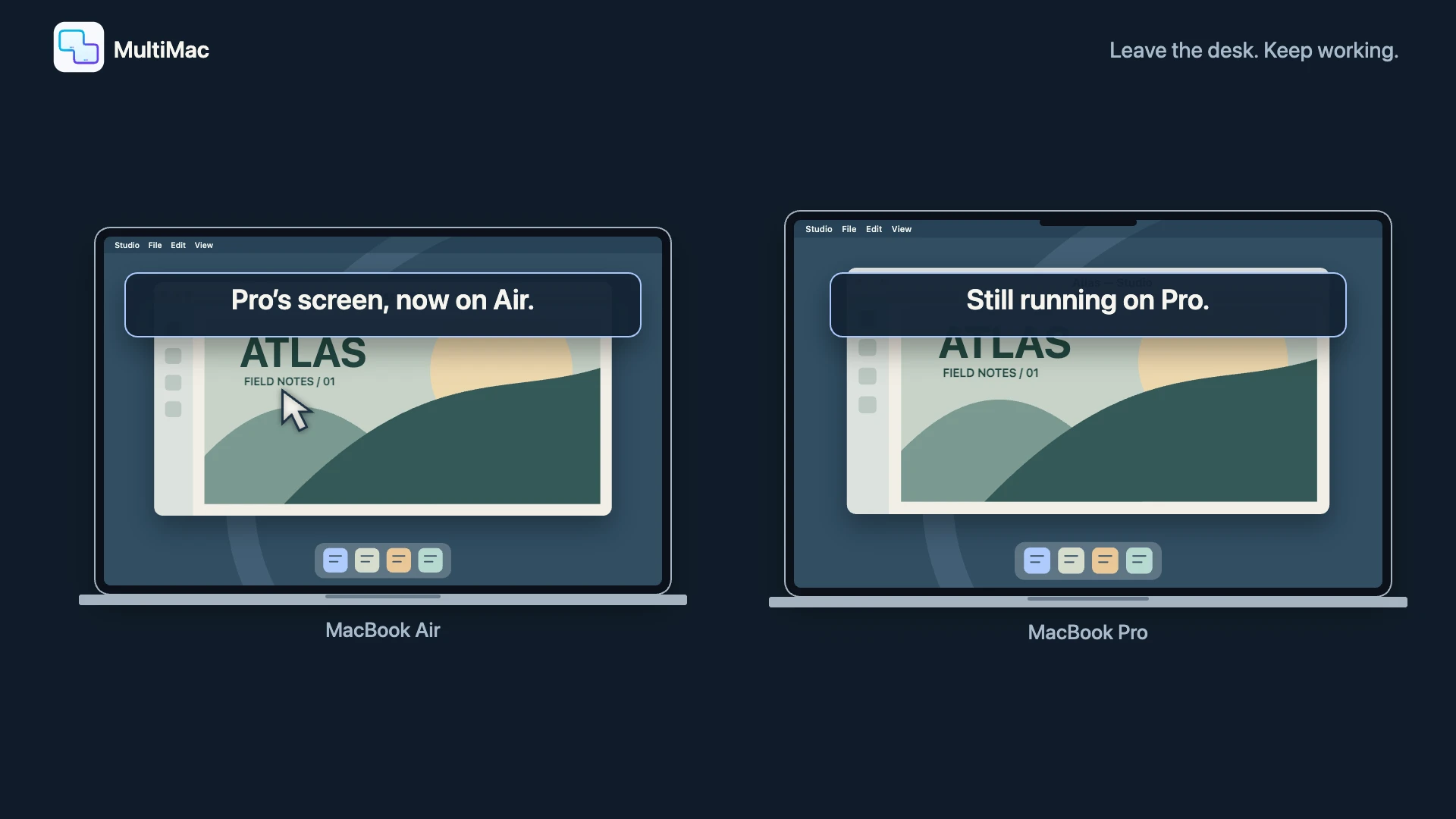
Bluetooth estimates nearby or away, not exact rooms or distance. Both Macs must stay reachable on the same network, awake and authorized for screen sharing.
Less switching. More doing.
Keep your work and personal Macs separate. Bring the way you use them together.
Arrange Macs like screens on your desk. Move left, right, above or beyond another Mac with the same keyboard and pointer.
Text and images move between your Macs. Choose one-way sharing, both ways, or off for each connection.
Pair with a six-digit PIN. Block incoming control without giving up control of the other Mac. No shared Apple account required.
Need a browser or Finder window from another Mac? Bring that window onto yours. Work with it alongside your local apps, while it keeps running on the other Mac.
Choose from running apps. Open them from your Dock. No need to switch the whole screen.
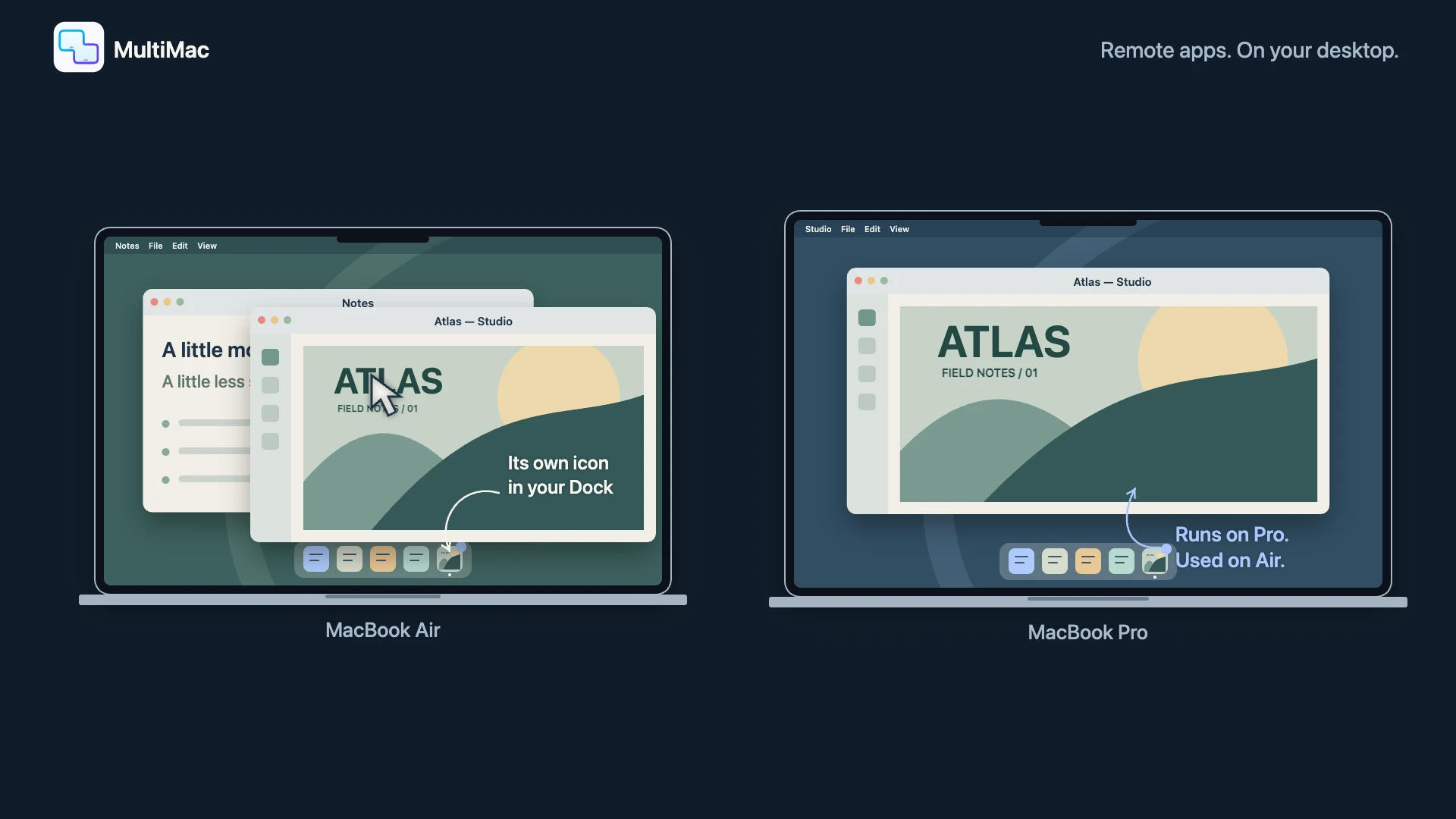
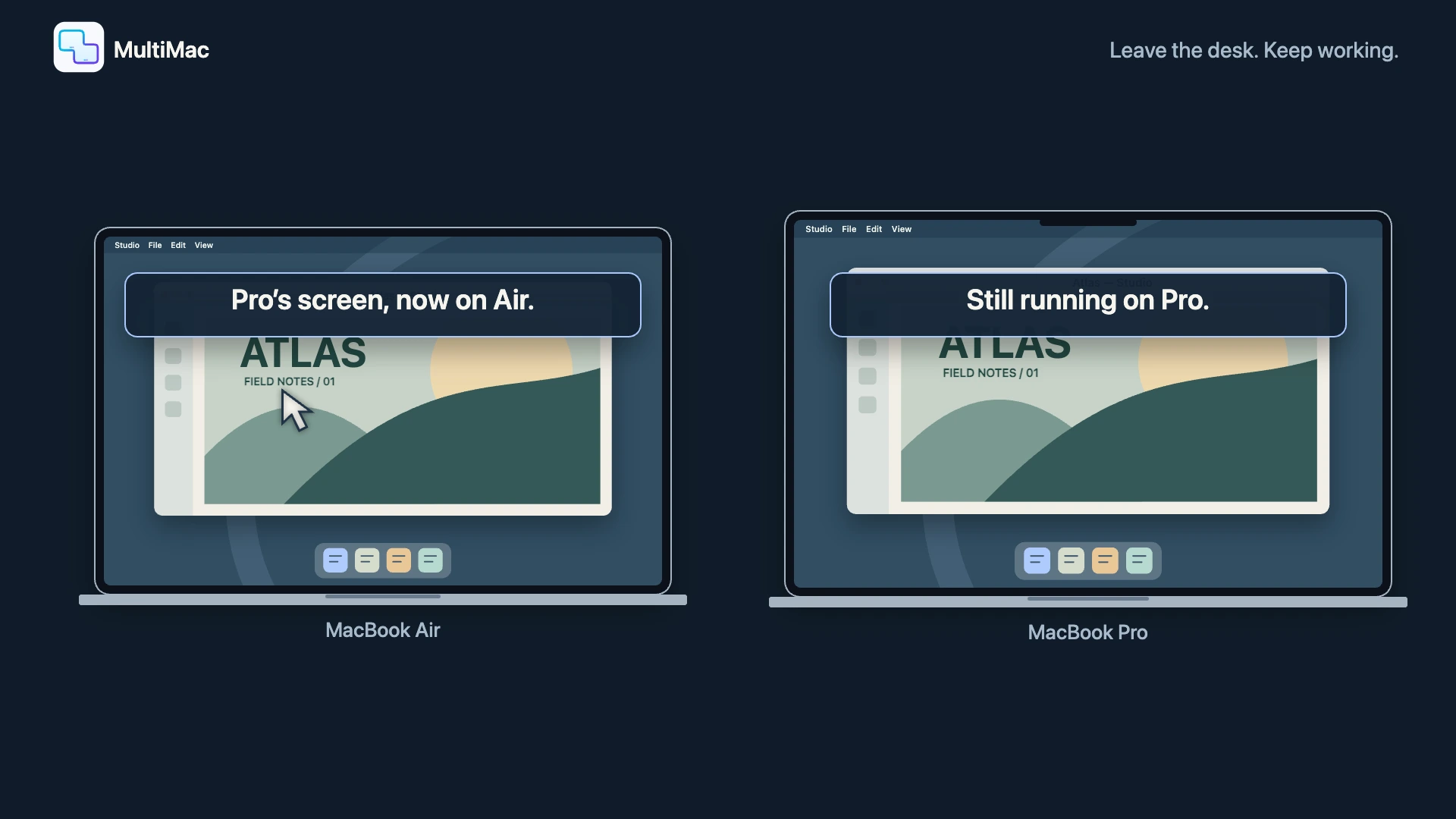
Take your laptop to another room on the same network. Cross to another Mac and its screen appears. Cross back and you are home.
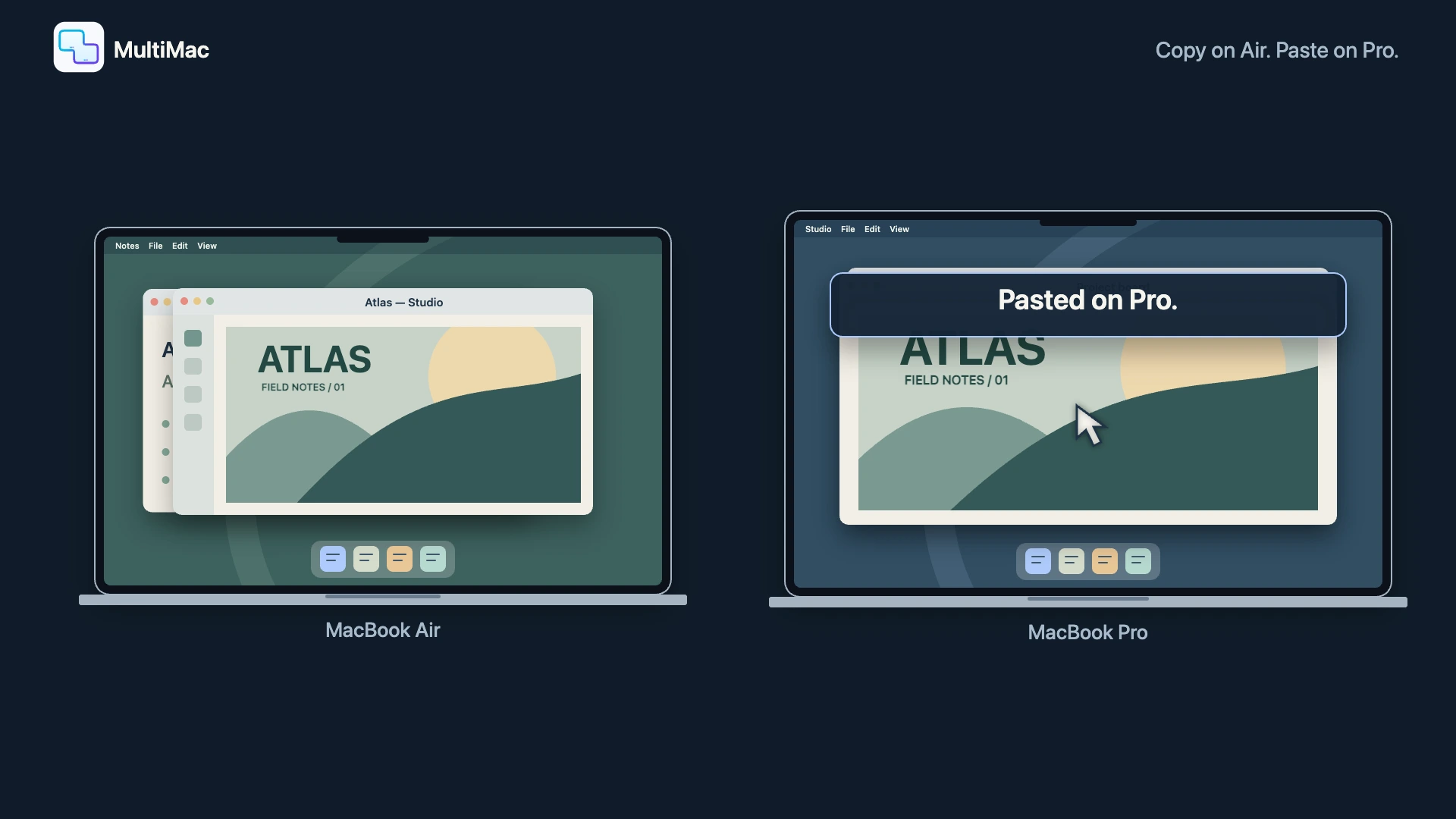
Text and images move between your Macs. Choose one-way sharing, both ways, or off for each connection.
Copy files or folders on one Mac and paste them on another. No email to yourself, no cloud folder in the middle. You choose the sharing directions.
Not just MacBooks
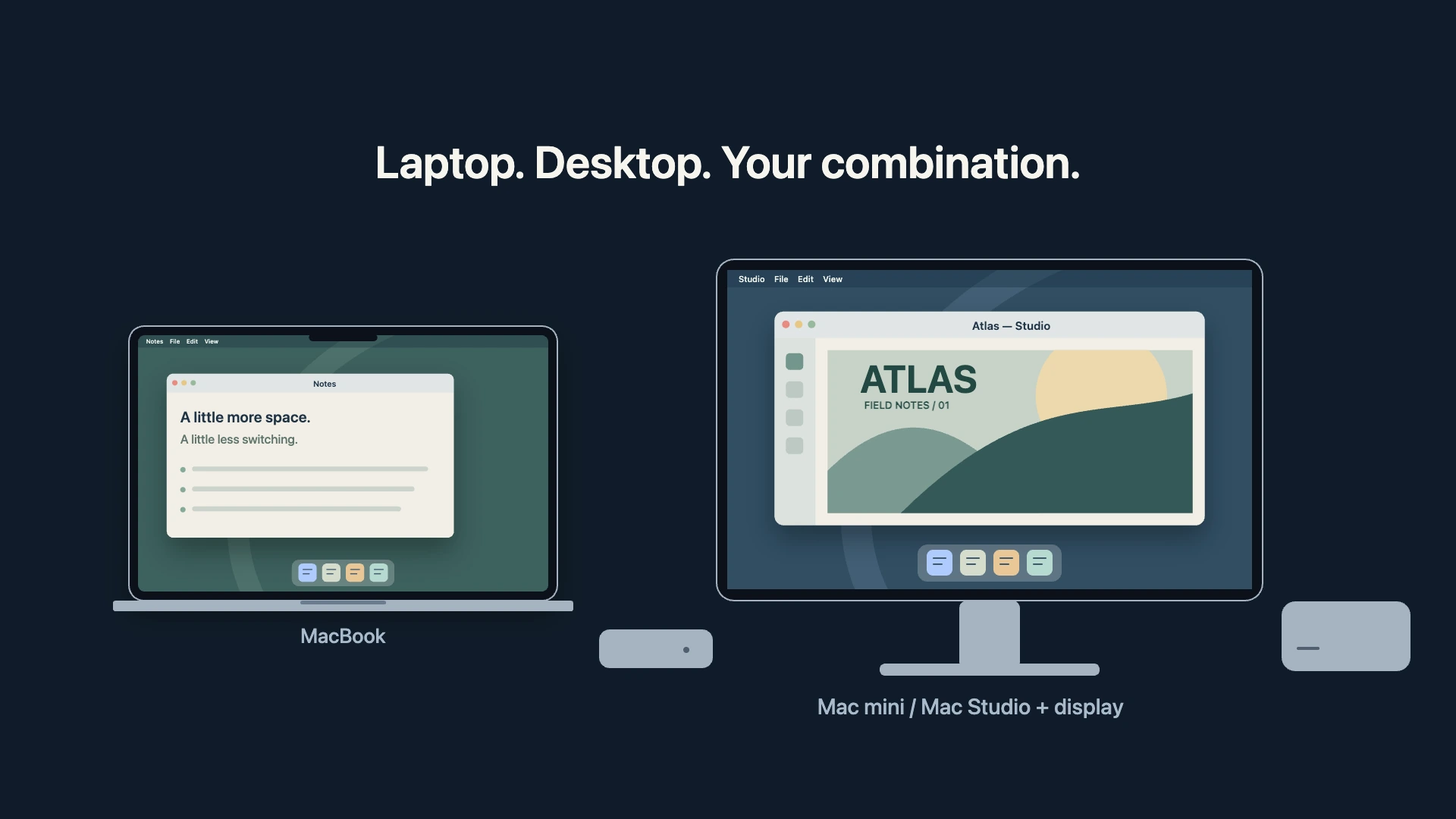
MacBook, Mac mini, iMac, Mac Studio or Mac Pro. Mix laptops and desktops on the same local network.
Intel and Apple silicon work together. Your Macs can run different supported macOS versions: macOS 12.3 or later on each Mac.
Inside MultiMac
Arrange your workspace visually. Keep control, screen viewing and clipboard directions separate.
Drag each Mac to where it sits on your desk. Move through the matching edge to control it.
Drag to match your desk · drop on another Mac to swap
Select a Mac to explore its settings. To move it without dragging, select it, then select an empty position.
Place Macs around your active displays. Empty positions do not block pointer handoff.
Assign a hotkey to open a remote desktop. Press it again to return.
Choose On, Off, When away, When lid closed, or When away or lid closed.
Select screen quality and size. Low Latency mode requests up to 120 fps; actual performance depends on the Macs and network.
Send and receive text or images independently. Enable file and folder transfers with Premium.
Allow or block each paired Mac. Control access and screen/app viewing have separate permissions.
Help a controlled Mac stay awake. This does not bypass macOS locking or guarantee operation during lid sleep.
Sync keyboard layouts, hide the cursor after leaving, or clear input focus when you return.
See each Mac’s version and update eligible connected Macs, including this Mac, from Settings.
For work Macs, personal Macs, and everything between
MultiMac is a software KVM for Mac: share your keyboard and mouse without a hardware switch. Pair Macs with different Apple accounts, set sharing directions, and optionally bring remote screens or individual apps onto your desktop.
Universal Control supports Macs and iPads using the same Apple account. MultiMac is Mac-to-Mac, on your local network. It is not an iPad app or an internet remote-access service.
Apple’s Universal Control requirementsA little setup. A lot less friction.
Download the universal app on each Mac and follow the permission checklist.
Nearby Macs appear automatically. Confirm the six-digit PIN to connect devices you trust.
Drag your Macs into position. Choose what to share with each one, then move through the matching edge.
No. MultiMac pairs trusted Macs independently of their Apple accounts. The first version works on the same local network.
Not in this version. Keep your Macs on the same local network. You can move to another room, but the connected Macs must remain reachable and awake.
Accessibility and Input Monitoring enable pointer and keyboard control. Local Network enables connections. Screen Recording is needed only on a Mac whose screen you choose to view.
Input, screens and shared content travel directly between paired Macs on your local network through encrypted connections. Licensing, payments and update checks use online services.
Core keyboard, pointer and text/image clipboard sharing remain available. Screen sharing, Shared Apps and file/folder transfers require Lifetime Premium.
Learn how MultiMac handles your data and protects your privacy.